Git for Non-Developers: 8 Commands That Keep You Safe
A plain-English Git guide for non-developers: the 8 commands that keep your code safe, how commits work as save points, and how to undo what your AI just did.
· Justin Boggs
Photo by Pankaj Patel on Unsplash
Git is a version control system that saves snapshots of your project over time, so you can always go back to a version that worked. For a non-developer shipping software with an AI assistant, that's the entire value: when your AI confidently rewrites a file and breaks the app, Git is the undo button that actually works. You do not need to understand Git deeply. You need eight commands, one mental model — commits are save points — and the discipline to save often. This guide covers exactly that, in plain English, with the specific commands to type and, just as important, the one command that can cost you a day of work.
TL;DR
- Git saves snapshots ("commits") of your project so you can return to any version that worked — your real undo button when AI breaks something.
- Eight commands cover 95% of what a non-developer needs:
status,add,commit,push,pull,log,checkout, andrevert.- Commit before you let the AI make a big change, so you always have a clean point to return to.
- To undo pushed work, use
git revert(safe). Avoidgit reset --hardunless you understand it — it deletes work permanently.- Git is the most widely used version control tool among developers for a reason: it makes reckless-feeling changes safe.
Why a non-developer needs Git at all
You might reasonably ask why the least technical person in the room needs to learn a developer tool. The answer is that Git solves a problem you have constantly and painfully: your AI assistant makes a change, the app breaks, and you have no clean way back.
Without version control, "undo" is whatever your editor remembers in this session — and that memory is gone the moment you close the file or the AI overwrites twenty files at once. With Git, every commit is a permanent, labeled snapshot you can return to at any time. The app worked an hour ago? There's a commit for that. You go back to it in one command. This is the safety net that makes AI coding survivable for someone who can't read every line the AI wrote.
Git is also the shared language of the entire software world. It's far and away the most-used version control system in Stack Overflow's developer survey, which means every tutorial, every AI assistant, and every deployment platform assumes you're using it. Vercel deploys from Git. Your AI assistant thinks in commits. Learning the basics isn't optional overhead — it's the thing that connects your project to the tools around it.
There's a mindset shift underneath this that's worth naming. A lot of non-technical founders treat AI-generated code as fragile and scary, so they avoid touching it. Git flips that. When you can undo anything in one command, you stop being precious about changes. You let the AI try the bold refactor, and if it works, great; if it doesn't, you roll back and you've lost nothing. This is the same confidence I wrote about in the vibe coding workflow — the willingness to ship things you don't fully understand comes directly from having guardrails that catch you. Git is the most important guardrail there is.
The mental model: commits are save points
If you've ever played a game with save points, you already understand Git. A commit is a save point — a snapshot of every file in your project at one moment, with a short note describing what changed. You create save points as you go, and you can load any of them later.
That's the whole concept. Everything else is mechanics. When people say a project is "in Git," they mean it's a series of these snapshots stacked in order, each one building on the last. The most recent commit is where you are now; the ones behind it are where you've been; and you can jump back to any of them without losing the others.
The practical habit that makes this powerful: commit before every meaningful change, especially before you let the AI do something big. About to ask Claude Code to restructure your database or rewrite your payment logic? Commit first. Now you have a clean save point labeled "working before payment refactor." If the refactor goes sideways — and complex refactors often do — you return to that commit and you're exactly where you started. No panic, no lost day.
A commit has three parts you'll interact with: the working directory (your files as they are right now), the staging area (the changes you've marked to include in the next commit), and the commit itself (the saved snapshot). The staging step feels like bureaucracy at first, but it's just Git asking "which of these changes do you actually want to save together?" For a non-developer, the answer is usually "all of them," and there's a shortcut for that we'll get to.
Understanding this model is more than half the battle. Once you think of your project as a stack of save points you control, reading your AI's output gets less intimidating too — a topic I go deep on in how to read your AI assistant's output when you don't speak code. You're not trying to verify every line is perfect. You're making a save point, letting the change happen, and checking whether the app still works. If it doesn't, you roll back. The commit history is your escape hatch.
The 8 commands that keep you safe
You can run a whole SaaS on eight Git commands. Here they are, in the order you'll use them, in plain English.
| Command | What it does | When you run it |
| --- | --- | --- |
| git status | Shows what's changed since your last commit | Anytime you're unsure where things stand |
| git add . | Stages all your current changes for the next commit | Right before committing |
| git commit -m "message" | Saves a snapshot with a note | After finishing a working chunk of work |
| git push | Uploads your commits to GitHub | After committing, to back up and deploy |
| git pull | Downloads the latest commits from GitHub | Before starting work, to sync |
| git log --oneline | Lists your recent save points | When you need to find a commit to return to |
| git checkout <commit> | Jumps your files back to an earlier save point | To inspect or recover an old version |
| git revert <commit> | Creates a new commit that undoes a past one | To safely undo work you've already pushed |
The daily rhythm is simpler than the list suggests. You pull to start, you work with your AI, you status to see what changed, you add . and commit to save a good state, and you push to back it up. That loop — pull, work, status, add, commit, push — is 90% of your Git life.
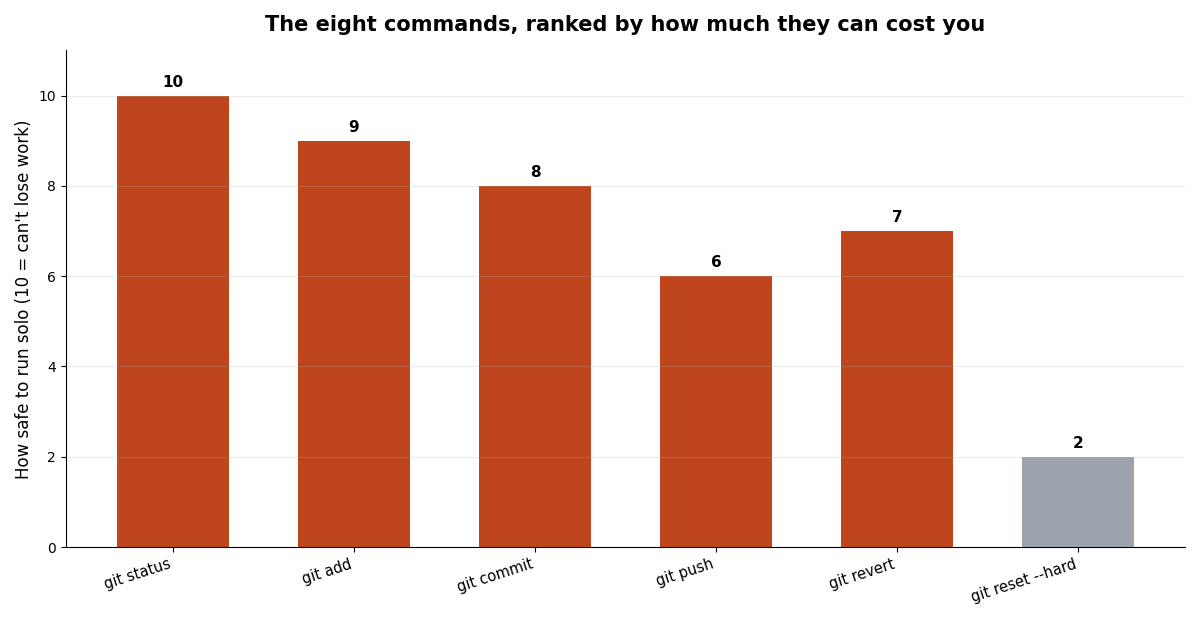
Notice which command sits at the bottom of that safety ranking. git reset --hard is the one that can permanently destroy work, and it's why the next section is entirely about undoing things the safe way. The other seven commands are hard to hurt yourself with — the worst case is usually confusion, not lost work. git status and git log don't change anything at all; they just show you where you are, so run them freely whenever you feel lost.
One command not in the eight but worth knowing: git branch and its companion git checkout -b <name>, which create a parallel version of your project to experiment in. For a solo non-developer early on, you can mostly skip branches and work on one line — but once you're collaborating or running risky experiments, branches keep your working version untouched while you try things. I'd add them once the eight above feel automatic, not before. Official reference for all of these lives in the Git documentation and the free Pro Git book, both worth bookmarking.
How to undo what the AI just did
This is the section you'll come back to. Your AI assistant just rewrote something, the app is broken, and you need to go back. There are two safe ways and one dangerous way, and knowing which is which will save you.
The safest undo: git revert. If you've already pushed the bad change, git revert <commit> is your tool. It doesn't erase history — it creates a new commit that is the exact opposite of the one you name, cancelling out the change while keeping a clean record. Nothing gets lost, and if you were collaborating, nobody's copy breaks. As the DataCamp reset-and-revert tutorial puts it, revert is the safe undo for anything others may have pulled. For a non-developer, revert should be your default undo verb.
The inspect-and-recover move: git checkout. Sometimes you don't want to undo — you want to see what an old version looked like, or copy one file back. git log --oneline shows your recent save points with short IDs; git checkout <id> moves your files to that snapshot so you can look around. You can then grab what you need and return to the present. This is non-destructive as long as you're just looking.
The dangerous one: git reset --hard. You will see this suggested online and sometimes by AI assistants. git reset --hard moves your project back and permanently deletes the changes after that point. There's frequently no undo. The Git community's own guidance is blunt about this: reset rewrites history and should be reserved for local cleanup you fully understand. My rule as a non-developer: never run git reset --hard unless someone I trust is watching, or I've just made a fresh backup commit. When in doubt, revert instead.
Here's the decision in one line. Did you already push? Use git revert. Only want to look at an old version? Use git checkout. Want to permanently throw away recent local work and you're certain? That's the only time for reset --hard — and even then, commit a backup first.
This maps directly onto knowing when to trust your assistant and when to slow down, which I cover in when to trust your AI assistant. Git gives you the freedom to let the AI be bold precisely because the undo is real. But the undo is only real if you reach for the safe command. Reverting a change you didn't want is a shrug; reset-hard on the wrong thing is the lost day everyone warns you about.
A safe daily workflow you can actually keep
Commands are useless without a rhythm. Here's the loop I run, and the one I'd hand to any non-technical founder starting out. It fits in your head and it keeps you protected.
flowchart TD
    A[git pull - sync latest] --> B[Commit a clean starting point]
    B --> C[Ask AI to make a change]
    C --> D[git status - see what changed]
    D --> E{App still works?}
    E -- Yes --> F[git add . and git commit]
    F --> G[git push - back up and deploy]
    G --> C
    E -- No --> H[git revert or checkout the last good commit]
    H --> C
The non-obvious move in that loop is committing a clean starting point before the AI touches anything. That single habit is the difference between "the app broke and I calmly rolled back" and "the app broke and I don't know what changed." It costs ten seconds. It has saved me more times than any other practice.
Write commit messages your future self can read. "fix" tells you nothing in a week; "fix Stripe webhook signature check" tells you exactly what that save point holds. You don't need perfect prose — you need enough that when you're scanning git log --oneline looking for the last good version, you can find it. This is the same "specific beats generic" discipline that makes AI prompts work, which is not a coincidence.
Commit more often than feels necessary. New founders under-commit because each commit feels like a ceremony. It isn't — a commit is cheap, and ten small save points are far more useful than one giant one, because you can return to a precise moment instead of a vague "sometime yesterday." If you finished one working thing, commit it. When something later breaks, you'll have a tight, labeled history to walk back through, which is exactly the workflow I lean on in the non-tech founder's debugging playbook with Claude Code.
Finally, push regularly. A commit lives only on your computer until you push it to GitHub. Pushing backs your work up off your laptop and, for most modern stacks, triggers your deploy. Get in the habit of pushing at the end of every working session — a laptop that dies with three days of uncommitted, unpushed work is a horror story you can simply opt out of.
Frequently asked questions
Do I really need Git if I'm the only person on my project?
Yes. Git's value for a solo founder isn't collaboration — it's the undo button. Every commit is a save point you can return to when a change breaks your app, which happens constantly when an AI is writing the code. Even alone, that safety net is worth the small learning curve.
What's the difference between Git and GitHub?
Git is the version control tool that runs on your computer and saves snapshots. GitHub is a website that stores a copy of your Git history in the cloud so it's backed up, shareable, and connectable to deploy tools. You use Git locally and push to GitHub. The GitHub documentation has a gentle on-ramp if you're setting up an account.
Can my AI assistant just run Git for me?
Mostly, yes — Claude Code and similar tools can run Git commands on request. But you should understand what commit, push, and especially revert versus reset --hard do, so you can catch a dangerous suggestion. Delegating the typing is fine; delegating the understanding of what destroys work is not.
What do I do if I committed something broken?
If you haven't pushed, you can keep working and commit the fix on top. If you have pushed, run git revert <commit> to safely undo it with a new commit. Avoid git reset --hard unless you're certain and have a backup — it deletes work permanently.
How is this different from just saving files in my editor?
Your editor's undo is temporary and disappears when you close the file or the AI overwrites it. Git commits are permanent, labeled snapshots of your entire project that survive across sessions and can be returned to at any time. They're different tools for different problems.
When should I start using branches?
Once the eight core commands feel automatic and you're either collaborating or running risky experiments. A branch is a parallel copy of your project where you can try something without touching your working version. Early on, a single line of commits is simpler and enough.
Where this leaves you
Git turns AI coding from nerve-wracking to survivable. You don't need to master it — you need eight commands, the habit of committing before big changes, and the instinct to reach for git revert instead of git reset --hard when something breaks. Do that and the worst-case outcome of any AI change is "roll back and try again," which is no outcome at all. That's the whole point: the safety net is what lets you move fast.
If you're learning to ship software with AI as a non-developer, Coding Capybaras is the free boilerplate I built for this exact journey — it comes wired into Git and GitHub from the first commit, so the save-point habit is set up before you write a line.